








Google Translate + Stackby Integration

Connect Google Translate to Stackby in 1 click

Free foreverFree forever.
Use premium features free for 14 daysUse premium features free for 14 days.
1.
  • Stackby
    Row is created in Stackby
  • Stackby
    Row is created in view in Stackby
  • Stackby
    Stack is created in Stackby
  • Stackby
    Table is created in Stackby
Arrow Right
2.

Trusted by experts at...

indeed-logoIntuit-logonvidia-logosalesforce-logottc-logoWalmart-logoaccenture-logoadobe-logoatlassian-logocisco-logodeloitte-logohp-logo

Ready Workflows Ready Workflows   for Google Translate + Stackby Integration

Just click on the workflow you want to automate

Most popular automationmost-popular-automations
Stackby + Google Translate Integration

When Row is created in Stackby, Translate and enter it in Stackby

This automation allows you to automatically detect the language when Row is created in Stackby and translate it to a different language using Google Translate. This translated data is then used to Create row in Stackby. It helps streamline language translations and data entry.

Here's how it works:
 1. Google Sheets: Whenever a new row is created in Google Sheets, the automation will be triggered.
 2. {{Language Detection}}: Pass the text from Google Sheets to Google Translate for language detection.
 3. Condition - You can add a condition that says, Language..... 'is not equal to'..... your desired language. So if the condition is met, the automation will proceed further.
 4. {{Translation}}: The automation will translate the text from Stackby to your desired language.
5. Google Sheets: It will then Create row in Stackby with the translated text and relevant data. Make sure you specify the Stackby, and column values for storing the translated data.

See more
Stackby + Google Translate Integration

Translate and enter data from Stackby into Google Translate

This automation allows you to automatically translate the text when Row is created in Stackby, and Create row in Stackby with the translated content. It helps automate the process of translating and managing data in different languages within different spreadsheets.

Here's how it works:
 1. Stackby: Whenever Row is created, the automation will be triggered.
 2. Google Translate: Pass the text content from Stackby to Google Translate for translation into your desired language.
 3. Stackby: The translated content will be used to Create row in Stackby, allowing you to manage and analyze data in the desired language. Make sure you specify the Stackby, and column values for storing the translated data.

See more
  • 1of1
Our team

Ready Workflows Did you know?

Our team can create automations for you... At no extra cost!

Tell us what type of automation you want to make?
Automations

Top 10 Most Popular Google Translate Automations from
Integrately Community

Just click on the workflow you want to automate

Google Sheets logo
Google Translate logo
When Spreadsheet row is created in Google Sheets > Detect Language in Google Translate > check a condition > Translate > Create spreadsheet row in Google Sheets
Activate
ClickSend SMS logo
Google Translate logo
When Incoming SMS is received in ClickSend SMS > Detect Language in Google Translate > check a condition > Translate > Send SMS in ClickSend SMS
Slack logo
Google Translate logo
When Group message is received in Slack > Detect Language in Google Translate > check a condition > Translate > Send direct message in Slack
Activate
Telegram logo
Google Translate logo
When Update is received in Telegram > Detect Language in Google Translate > check a condition > Translate > Send message in Telegram
Activate
Google Sheets logo
Google Translate logo
When Spreadsheet row is created in Google Sheets > Translate Text in Google Translate > Create spreadsheet row in Google Sheets
Activate
Google Sheets logo
Google Translate logo
When Spreadsheet row is created in Google Sheets > Detect Language in Google Translate > check a condition > Translate > Create spreadsheet row in Google Sheets
Activate
ClickSend SMS logo
Google Translate logo
When Incoming SMS is received in ClickSend SMS > Detect Language in Google Translate > check a condition > Translate > Send SMS in ClickSend SMS
Slack logo
Google Translate logo
When Group message is received in Slack > Detect Language in Google Translate > check a condition > Translate > Send direct message in Slack
Activate
Telegram logo
Google Translate logo
When Update is received in Telegram > Detect Language in Google Translate > check a condition > Translate > Send message in Telegram
Activate
Google Sheets logo
Google Translate logo
When Spreadsheet row is created in Google Sheets > Translate Text in Google Translate > Create spreadsheet row in Google Sheets
Activate
Google Docs logo
Google Translate logo
When Document is created in folder in Google Docs > Translate Text in Google Translate > Create document in Google Docs
Activate
Telegram logo
Google Translate logo
When Update is received in Telegram > Translate Text in Google Translate > Send a message in Telegram
Activate
CompanyHub logo
Google Translate logo
When Record created(Custom Table) in CompanyHub, Translate and enter it in CompanyHub
Salesforce logo
Google Translate logo
When Record is created in Salesforce, Translate and enter it in Salesforce
Activate
Smartsheet logo
Google Translate logo
When Row is added in Smartsheet, Translate and enter it in Smartsheet
Activate
Google Docs logo
Google Translate logo
When Document is created in folder in Google Docs > Translate Text in Google Translate > Create document in Google Docs
Activate
Telegram logo
Google Translate logo
When Update is received in Telegram > Translate Text in Google Translate > Send a message in Telegram
Activate
CompanyHub logo
Google Translate logo
When Record created(Custom Table) in CompanyHub, Translate and enter it in CompanyHub
Salesforce logo
Google Translate logo
When Record is created in Salesforce, Translate and enter it in Salesforce
Activate
Smartsheet logo
Google Translate logo
When Row is added in Smartsheet, Translate and enter it in Smartsheet
Activate

Top 10 Most Popular Stackby Automations from
Integrately Community

Most popularmost-popular-automations
01
Google Sheets logo
Stackby logo
Create Stackby row for new Google Sheets row
02
WhatsApp logo
Stackby logo
Create Stackby row for new message received in WhatsApp
03
WA Web Plus logo
Stackby logo
Create Stackby row for new whatsapp event received in WA Web Plus
04
AIDA Form logo
Stackby logo
Create Stackby row for new AIDA Form form submission
05
Stackby logo
Ultramsg logo
Send Ultramsg message for new Stackby row
cloud
Stackby
app integration
06
RSS logo
Stackby logo
Create Stackby row for new RSS feed item
07
Flowlu logo
Stackby logo
Create Stackby row for new Flowlu task
08
plug&paid logo
Stackby logo
Create Stackby row for new plug&paid order
09
Wufoo logo
Stackby logo
Create Stackby row for new Wufoo form submission
10
Paperform logo
Stackby logo
Create Stackby row for new Paperform form submission
How Integrately Works?

How Integrately Works?

1
Select Automation
Select a trigger from Google Sheets
2
Connect Accounts
Connect Accounts
That’s it! You just connected Google Sheets to Trello
3
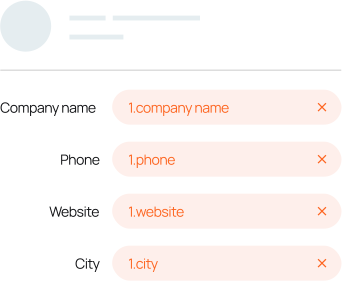
Automation is ready
Setup an action from Trello
Price Comparison with Popular Alternatives
Popular Alternative
😐
750 Tasks
in $19.99
Integrately
😍
2,000 Tasks
in $19.99

Trusted by 42,000+ Customers

Highest Rated Integration Platform on G2
P
ProductHunt

Most upvoted product of the month

2000+
leader
most-implementable
easiest-to-do-business
best-support

Want to automate something else in your workflow?

You Can Also Connect Google Translate or Stackby With 1400+ Other Apps

Google Translate
Google Translate
Google Translate can translate between more than a hundred different languages. The text or webpage you want translated can be entered either by copy-and-pasting it or by using the voice input feature.
Stackby
Stackby
Stackby is a flexible collaboration platform that you can use to make data-driven decisions with your team, automate repetitive tasks and access applications and services using API calls.